Photos at the top of your blog known as a “Featured Image” can be added to your blog using the “Featured Image” box on the edit page/post screen. The size and ratio you upload is very important for the photo to look right across desktop, tablet and mobile devices.
For the Featured Image to look good, here is what you need to do:
1. Choose a photo that is horizontally orientated, is at least 1600 pixels wide and the subjects are mostly horizontally inline near the vertical center of the photo.
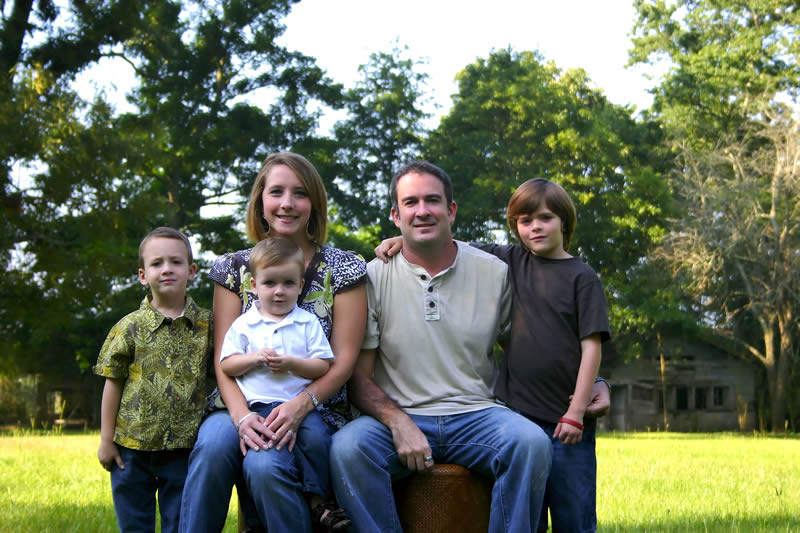
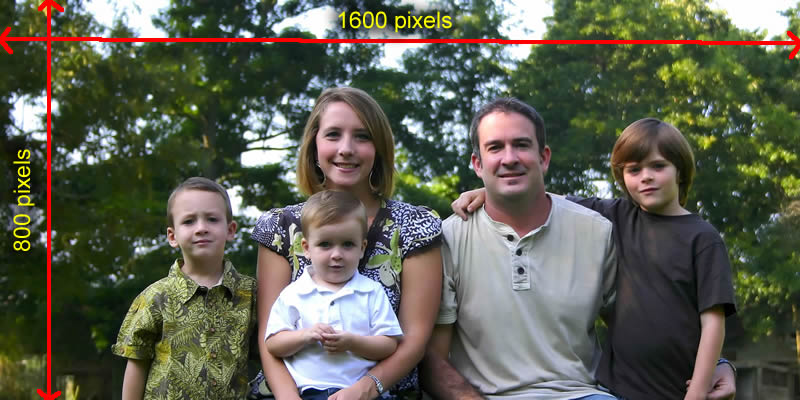
2. * Crop the photo at a 2:1 ratio, maintaining a minimum of 1600 pixels wide by 800 pixels high and keeping the subjects at the vertical center of the photo.
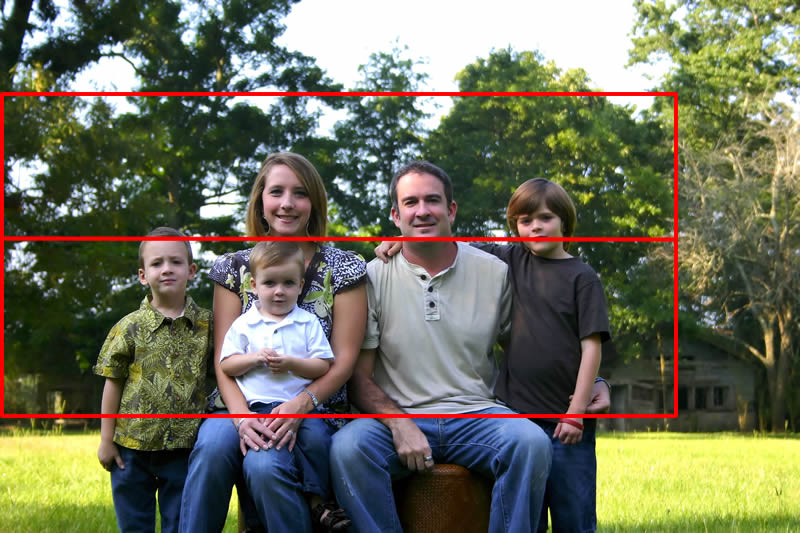
3. The dimensions and placement of the subjects should look like this:
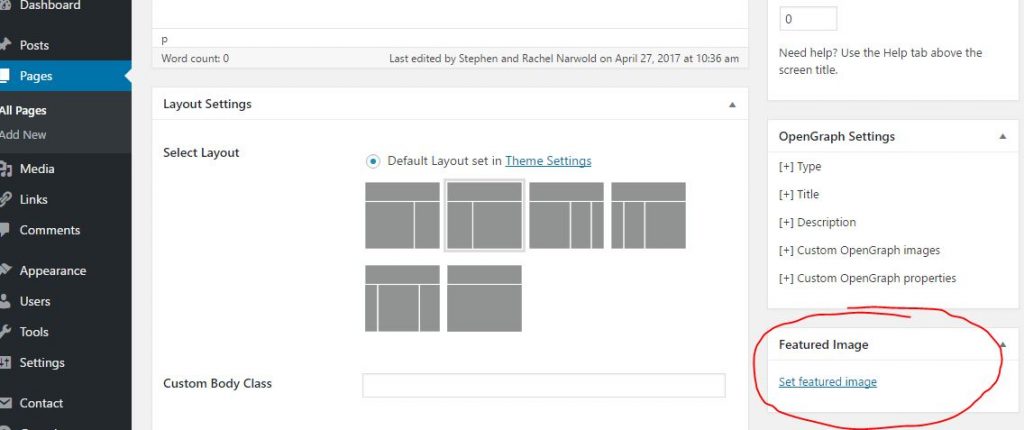
4. Use your blog dashboard to upload and publish the cover photo using the “Featured Image” box on the post or page where you’d like the image to appear (Any post or page without a featured image will display one of the generic images we have provided). “Posts” refer to individual blog posts, while “Pages” refer to all the other pages on your blog (Home, All Posts, About, Give, Contact, Photos, etc.).
5. When you refresh your public blog view, you should see your new cover photo.
* If you don’t know how to crop and resize a photo, download Google’s free photo editor called “Picasa” HERE. After you have installed the program, Google “how to crop and resize a photo using Picasa.” If you get lost or need further assistance, request help using the blog_support@ntm.org email address. If you can provide us with a usable photo, we will likely be able to update your Cover Photo for you.
Leave a Reply