Google Authorship is a way to enable your name and photo to appear with Google search results for your posts. A more attractive search result makes it more likely that someone searching would click on your post.
In the picture below, you can see how David’s picture shows up next to his blog post, as well as his name, and a link to see more articles written by him (even if they are on other websites).

Luckily, the setup for this is not rocket science, and boils down to just 4 main steps.
Step 1: First of all, you need to have a Google Plus account. You can sign up at google.com/+. In order for your Google Plus account to qualify for the Google Authorship program and be useful, you must have a profile photo with a recognizable headshot.
Step 2: Add a link to your Google Plus Profile.
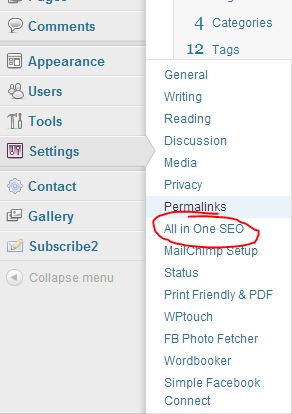
- Log into your myMinistry blog’s dashboard.
- In the left sidebar, hover over “Settings” and click on “All in One SEO”.
- Scroll down to the bottom and find the “Additional Post Headers” text block.
- Get your google profile number:
- Go to plus.google.com and log in if necessary
- Click on your profile picture in the top right corner and then on “View Profile”
- Look in the address bar of your web browser, and you will find a long number in the url. Select that number and copy it to your clipboard (right-click, copy)
- Add this link: <link rel=”author” href=”https://plus.google.com/[[number]]/posts”/> to the text box, replacing [[number]] with the profile number (right-click, paste)
- Click on “Update Options” at the bottom of the page

Step 3: Add a reciprocal link back from your Google Plus profile to the site you just updated.
- Edit the Contributor To section of your Google Plus account.
- In the dialog that appears, click Add custom link, and then enter http://blogs.ntm.org/firstname-lastname (the direct link to your blog).
- Click Save.

Step 4: Wait. Changes won’t show up in Google searches immediately. However, if you’re impatient, use the structured data testing tool to see what it will look like. In the search bar, enter the direct link to a specific post on your blog (It would look something like http://blogs.ntm.org/stephen-narwold/2012/10/19/code-is-poetry/), and click “Preview.”
If you have any issues, check out Google’s help page on the subject.
Leave a Reply